Connect Nature Remo
To bring Nature Remo into unawair, issue a single Access Token from Nature and paste it into the unawair integration screen. Unlike SwitchBot, Nature Remo uses just one token — there is no separate secret. Nature only shows the token once on the issuer page, so walking through the steps below in two tabs lets you paste it straight into unawair without parking a sensitive credential in a notes app.
Step 1: Open unawair’s integration form
Section titled “Step 1: Open unawair’s integration form”Sign in to unawair and head to Integrations → Add Nature Remo from the user menu (top-right). When the form with the Access Token field is on screen — like the one below — keep that tab open and continue.
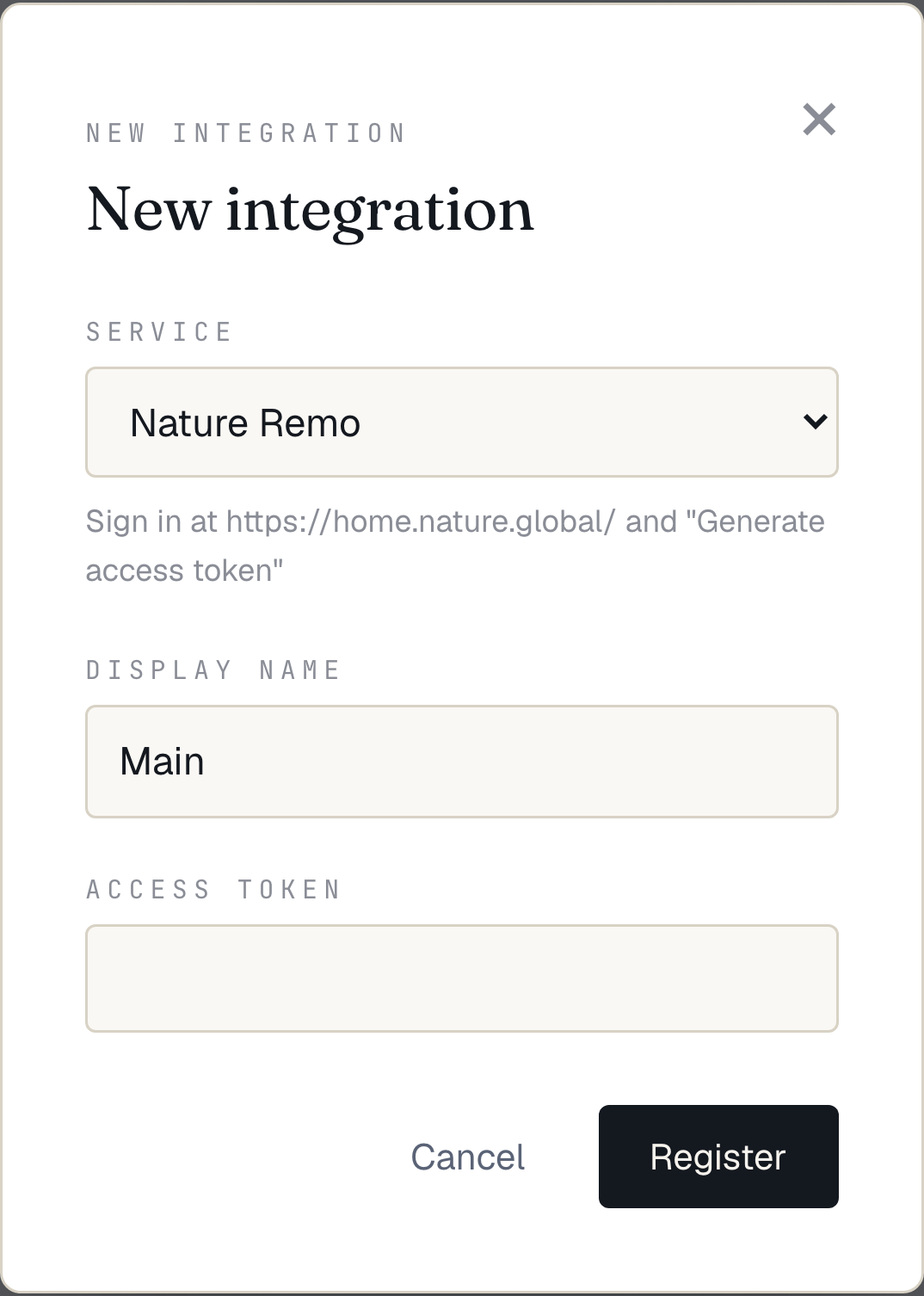
Step 2: Issue an Access Token from Nature
Section titled “Step 2: Issue an Access Token from Nature”In a second tab, open Nature’s Access Token issuer:
👉 Nature Home — Access Token issuer
Sign in with your Nature Remo account and click Generate access token. The token appears once on this screen — copy it and continue to the next step. (Lost it? Re-issue from the same page.)
Step 3: Paste into the unawair form
Section titled “Step 3: Paste into the unawair form”Switch back to the unawair tab you opened in step 1. Paste the Access Token into the field and click Save.
Step 4: Verify
Section titled “Step 4: Verify”If the save succeeds, unawair pulls in everything registered to your Nature Remo account. Open the Devices page and check:
- Your Nature Remo unit (built-in thermometer) shows a recent reading
- Any AC remote you’ve registered in the Nature Remo app appears as a controllable device
Once those show up, the integration is complete. Continue to Create an area to bundle these devices into a control unit.
When it doesn’t work
Section titled “When it doesn’t work”- Make sure no stray whitespace slipped into the token on paste
- Confirm the Remo unit is in the same Nature Remo account you signed in with
- The AC must already be registered as a “remote” in the Nature Remo app — unregistered ACs won’t appear in unawair
- See the FAQ for more