Connect SwitchBot
To bring your SwitchBot devices (hub, thermometer, AC control) into unawair, copy a token and a secret out of the SwitchBot app and paste them into the unawair integration screen. Walk through the steps below in two tabs — that way you can paste the credentials straight from the SwitchBot screen into unawair without parking them in a notes app.
Step 1: Open unawair’s integration form
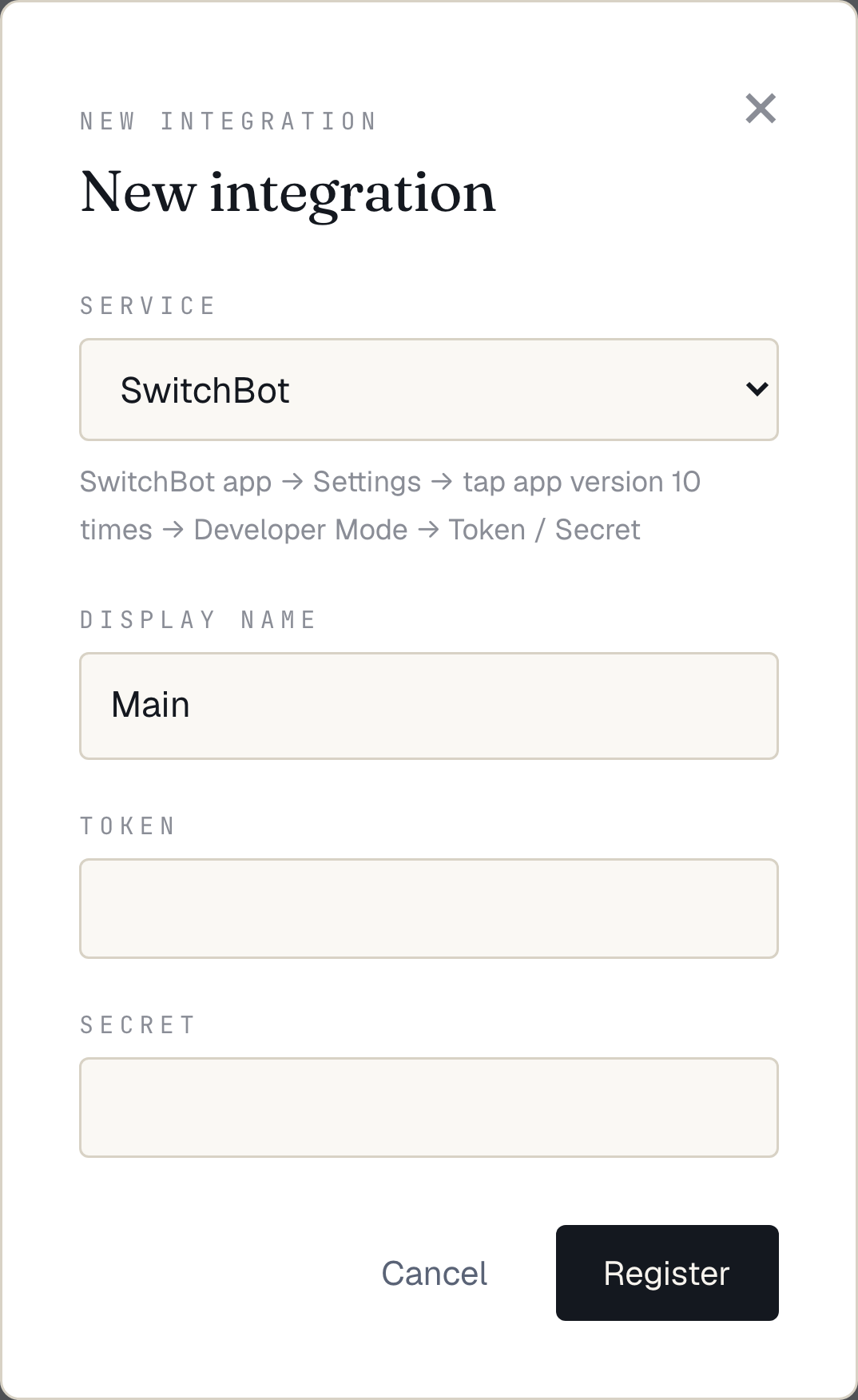
Section titled “Step 1: Open unawair’s integration form”Sign in to unawair and head to Integrations → Add SwitchBot from the user menu (top-right). When the form with the token / secret fields is on screen — like the one below — keep that tab open and continue.
Step 2: Get the token from SwitchBot
Section titled “Step 2: Get the token from SwitchBot”In a second tab, open the SwitchBot app and obtain the developer token + secret. SwitchBot maintains the official walkthrough — please follow it from end to end:
👉 SwitchBot Support: How to obtain the token
(The article is in Japanese; SwitchBot’s app UI itself is multilingual.)
Step 3: Paste into the unawair form
Section titled “Step 3: Paste into the unawair form”Switch back to the unawair tab you opened in step 1. Paste the token and the secret into the two fields and click Save.
Step 4: Verify
Section titled “Step 4: Verify”If the save succeeds, unawair pulls in everything attached to your SwitchBot account. Open the Devices page and check:
- Your hub (Hub Mini / Hub 2 / …) appears
- Your thermometer (Meter / Meter Plus / …) shows a recent reading
- Your AC appears as a controllable device
Once those show up, the integration is complete. Continue to Create an area to bundle these devices into a control unit.
When it doesn’t work
Section titled “When it doesn’t work”- Make sure no stray whitespace slipped into the token or secret on paste
- Confirm the devices are actually registered in your SwitchBot account (visible in the SwitchBot app)
- See the FAQ for more